
On this page
- Quick Summary
- Step 1: Decide Whether the Page Needs a YouTube Video
- Step 2: Choose a Relevant Video and Check Its Suitability
- Step 3: Build Useful Context Around the Embed
- Step 4: Add the Video Through Your Website Platform
- Step 5: Configure the YouTube Player Carefully
- Step 6: Protect Page Performance Before Publishing
- Step 7: Check Accessibility, Consent, and Mobile Behavior
- Step 8: Review Video SEO Signals Without Overpromising
- Pre-Publish YouTube Embed Checklist
- Where Automated Content Workflows Can Help
- Conclusion: Publish the Embed Only When It Improves the Page
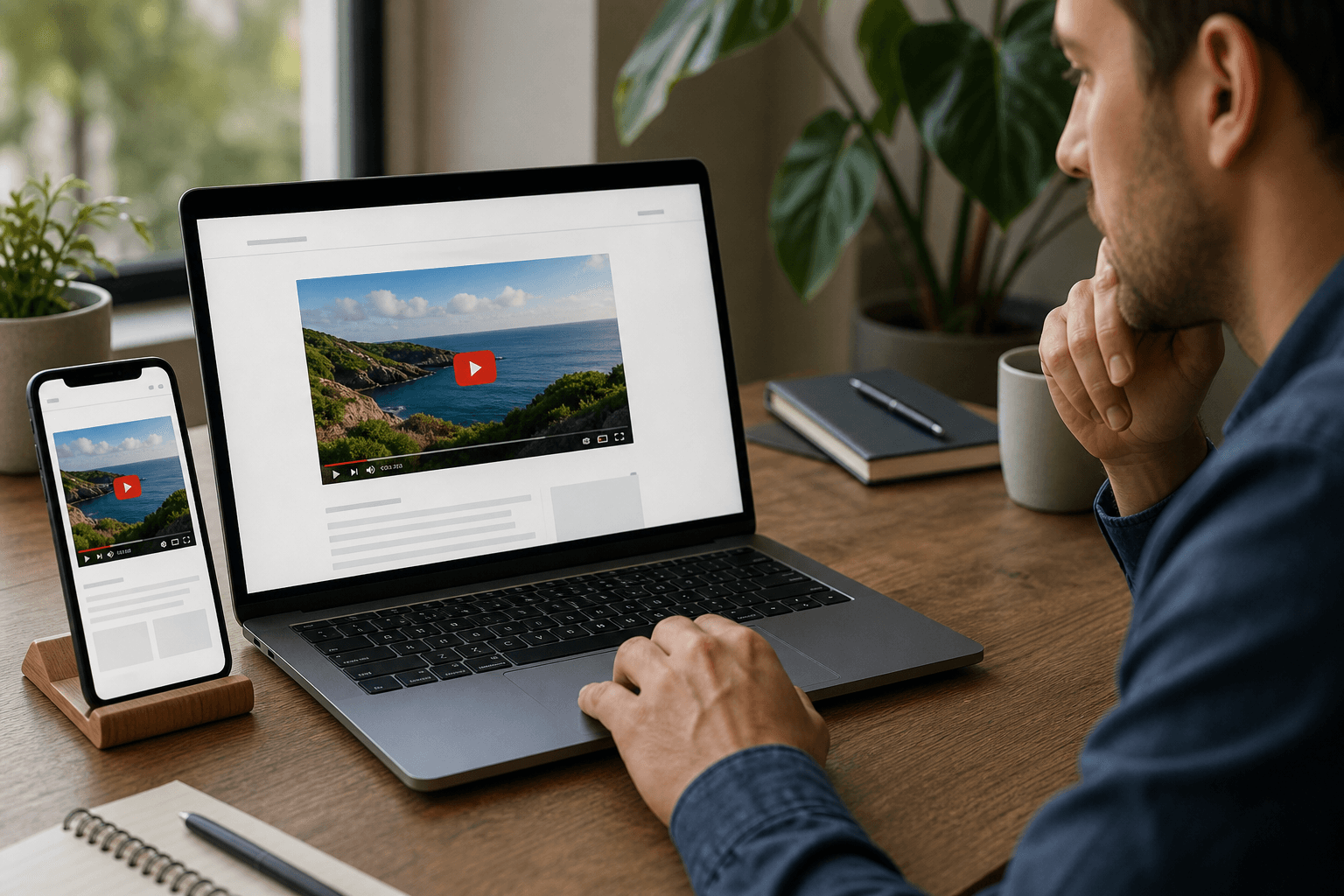
YouTube embedding optimization means more than pasting an iframe into a page. A useful embed should support the page’s purpose, work well on mobile, remain accessible, avoid unnecessary performance costs, and sit within accurate surrounding content. It should also be implemented without assuming an embedded video will automatically improve rankings.
The safest approach is to treat the embed as one part of the page experience: choose the video carefully, add context, use the appropriate implementation for your website platform, check the player and page behavior, and publish only after testing.
Quick Summary#

- Embed a video only when it clarifies, demonstrates, or supports the page’s main purpose.
- Check relevance, accuracy, availability, branding, and rights before using it.
- Keep useful text, headings, captions, and other context around the player.
- Review performance, mobile layout, keyboard access, captions, privacy, and consent.
- Treat video SEO guidance as a discovery framework, not a guarantee of rankings or AI citations.
Step 1: Decide Whether the Page Needs a YouTube Video#
Start with the visitor’s task, not with the availability of a video. An embed may help demonstrate a process, explain a product, answer a common question, show a venue or service, or build confidence before the next step.
It is less useful when it is loosely related, repeats the surrounding text without adding clarity, distracts from the page’s main action, or exists only because adding media feels like an SEO requirement. A page about a service does not automatically need a video, and a video does not replace clear service information.
Review the page’s headings and main call to action first. If you cannot explain in one sentence what the video helps visitors understand or do, leave it out. For more on aligning page elements with search intent, read this discussion of on-page content optimization.
Stop point: Do not continue until the video has a clear job on the page.
Step 2: Choose a Relevant Video and Check Its Suitability#

Consider the video’s topic, accuracy, audience, presentation, availability, and rights. It should directly address the page’s subject, reflect current information, suit your visitors’ language and expectations, and fit your brand context.
YouTube’s official embedding instructions explain how videos and playlists can be embedded. However, embedding does not give your business control over a third-party video’s availability, accuracy, copyright status, or accessibility.
Stop point: Open the video as a visitor would. If it is unavailable, outdated, misleading, or poorly matched to the page, choose another video or publish without one.
Step 3: Build Useful Context Around the Embed#
Use a descriptive heading and short introduction explaining what visitors will learn or see. Keep important information in text as well, such as a summary, instructions, specifications, transcript, captions, or written next step where appropriate.
An embed should not be the only meaningful source of information. Google’s video SEO documentation is a useful reminder that video presentation exists within the broader content and structure of the page.
Stop point: Imagine the video does not load. If the page becomes confusing or incomplete, improve the written content first.
Step 4: Add the Video Through Your Website Platform#
Use the embed method supported by your CMS. WordPress, Webflow, Shopify, Framer, and other platforms may use different fields, blocks, or publishing controls. Generally, place the video in the relevant page section, insert the approved YouTube URL or embed code, preserve responsive behavior, and preview before publishing.
Avoid unverified code from unknown sources. If your CMS changes the code or displays the video incorrectly, use its documentation or support process.
Stop point: Confirm in staging or preview that the player appears in the intended location, has a usable size, and does not hide nearby content.
Step 5: Configure the YouTube Player Carefully#
YouTube player parameters can affect controls, playback behavior, appearance, and other technical details. Choose settings to support a predictable visitor experience, not because a parameter is presumed to improve rankings.
Before changing a setting, ask what problem it solves. Removing controls may make playback harder, while automatic playback may be disruptive on mobile or for people using assistive technology. Consult the documentation for embedded-player parameters and the YouTube IFrame Player API.
Stop point: Remove any setting that makes the video less understandable, controllable, or appropriate for the audience.
Step 6: Protect Page Performance Before Publishing#
An embedded player can add resources and activity to a page. Its impact depends on the implementation, device, network, and other page elements. A standard embed may be suitable when the player is central to the page, while deferred loading or a preview that activates after interaction may be worth considering.
These approaches involve tradeoffs and require testing. Use web.dev’s video performance guidance, then measure the actual page rather than assuming lazy loading or another technique worked.
Stop point: If the embed creates a noticeable usability or performance problem, defer, simplify, reposition, or remove it.
Step 7: Check Accessibility, Consent, and Mobile Behavior#
- Mobile layout: Ensure the player fits without cropping or horizontal scrolling.
- Keyboard use: Check that visitors can reach and operate controls with a keyboard where supported.
- Captions and alternatives: Consider captions, a transcript, or another written alternative.
- Visible context: Explain the video before visitors start playback.
- Playback: Confirm sound, controls, and interaction are not unexpected.
- Privacy and consent: Follow requirements applicable to your audience and organization.
Stop point: Ask someone who did not build the page to use it on a phone and with a keyboard. Fix anything that prevents comfortable understanding or control.
Step 8: Review Video SEO Signals Without Overpromising#
Check that the video is relevant, the surrounding copy describes it honestly, the page has a clear purpose, and important information is not hidden only inside the player. Google Search Central’s guidance can inform structure and validation, but it does not guarantee rankings, video-rich results, featured snippets, or AI-generated citations.
Embedding a YouTube video also does not guarantee organic traffic growth or citations from ChatGPT, Claude, Perplexity, or another system. The responsible goal is a useful, accurate page with technically sound media.
Stop point: Remove any unsupported SEO promise from the page or project brief.
Pre-Publish YouTube Embed Checklist#
- The video has a clear purpose on this specific page.
- Topic, branding, accuracy, audience, availability, and rights have been checked.
- Privacy and consent considerations have been reviewed.
- The page includes useful text outside the player.
- The embed works in the chosen CMS and appears correctly.
- Mobile layout, keyboard interaction, captions, and alternatives have been considered.
- The page has been tested after adding the video.
- Links, controls, playback, and calls to action work as expected.
- No ranking, rich-result, or AI-citation outcome is presented as guaranteed.
Where Automated Content Workflows Can Help#
For small businesses, maintaining the entire workflow can be difficult: researching a topic, creating content, optimizing the page, adding relevant media, and publishing it correctly. UpliftAI describes its platform as an SEO execution engine with automated content creation and optimization, direct publishing support, and relevant YouTube video embedding.
Automation can reduce repetitive implementation work, but the same review standards still apply. Confirm that the selected video fits the page and that performance, accessibility, privacy, and search claims have been checked.
Conclusion: Publish the Embed Only When It Improves the Page#
Effective YouTube embedding optimization combines editorial judgment with technical validation. Decide whether the video genuinely helps, verify its suitability, add meaningful context, implement it through your platform, configure it conservatively, test performance, and review accessibility and mobile behavior.
If the video makes the page clearer and passes the checks, keep it. If it adds distraction, delay, uncertainty, or unsupported SEO expectations, leave it out. UpliftAI automates SEO content research, creation, optimization, publishing, CMS integrations, and relevant YouTube video embedding.


